
A Developer's Guide to Git Pull Specific Branch
When you need to git pull a specific branch, the command is your best friend: git pull <remote-name> <branch-name>.
So, if you want to grab the latest work from a branch named feature-update on your origin remote, you’d run git pull origin feature-update. This simple command fetches and merges changes only from that specific branch into whatever branch you're currently on. It’s a targeted strike, perfect for keeping your local work clean and isolated.
Pulling a Specific Git Branch The Right Way
Working on a team means constantly syncing your local code with the remote repository. A plain git pull is often good enough, but it can be a bit of a sledgehammer, sometimes pulling in changes from the default branch when you least expect it. That's why learning to git pull a specific branch is such a vital skill—it gives you precision and control.
The goal is to be explicit. Instead of letting Git figure it out, you tell it exactly which remote branch to grab and merge into your current workspace.
- No Surprise Merges: This prevents changes from other branches, like
mainordevelop, from accidentally polluting your feature branch. - Keeps You Focused: By pulling only the updates you care about, your local branch stays clean and centered on one task. No more mental gymnastics trying to figure out where random commits came from.
- Easier Conflict Resolution: When merge conflicts pop up, they’re directly related to the work you're intentionally integrating. This makes them so much easier to sort out.
It’s helpful to remember that git pull is really a two-for-one deal: it runs git fetch followed by git merge. First, it fetches the latest commits from the branch you specified, then it immediately tries to merge them into your local branch. Grasping this two-step process is a huge part of mastering your Git workflow.
This targeted approach is a lifesaver in fast-moving projects where multiple feature branches are buzzing at once—think of teams using an AI app generator like Dreamspace to rapidly build and iterate. If you want to dive deeper, Graphite has a great guide on how git pull relates to fetch.
Targeted Pull vs Generic Pull A Quick Comparison
To really see the difference, let’s put the two commands side-by-side. Think of it as choosing between a scalpel and a butter knife—both can cut, but one offers a lot more precision.
Ultimately, being explicit with git pull origin <branch-name> gives you the confidence that you're only bringing in the changes you actually want, which is exactly what you need for a smooth, predictable workflow.
Why and When You'd Pull a Specific Branch
So, we know the command, but when does pulling a specific branch actually save your skin? It’s all about integrating changes from your team without blowing up your own work. Using a targeted pull is a core discipline for keeping your project stable and your sanity intact.
Let's say you're neck-deep in a new feature on your own branch. Suddenly, a teammate pushes a critical bug fix to a separate branch called hotfix-login. You need their fix to test compatibility, but you absolutely cannot merge the entire main branch and derail your progress. This is the perfect moment for a specific pull. You can grab just what you need, completely isolated from everything else.
Keeping Your Workflow Clean
This isn't just a neat trick; it's fundamental to modern Git strategies like GitFlow, where you have dedicated branches for features, releases, and hotfixes. By pulling only the branch you need, you stop unrelated commits from main or develop from muddying up your local feature branch. It’s all about isolation.
A clean, focused branch history is infinitely easier to review, debug, and merge. Pulling specific branches is the single best way to prevent a tangled mess of unrelated updates in your local repository.
This controlled approach also massively cuts down on merge conflicts. When you only pull in relevant changes, any conflicts that pop up are directly related to the code you're working on. That makes them far simpler to understand and fix. This is a daily practice for effective developers, not just some textbook theory.
In fact, it’s a habit that pays off. A recent survey showed that around 75% of professional developers regularly specify a branch name in their pull commands precisely to avoid messy, unintended merges. If you're curious, you can read more about developer Git habits and their impact on productivity.
For teams building complex projects—like the ones we work on here at Dreamspace, our vibe coding studio—managing dozens of feature branches is just another Tuesday. The ability to pull a specific branch ensures that every developer can work on their piece of the puzzle without stepping on anyone's toes. It's what keeps the whole project humming along smoothly.
Practical Scenarios for Pulling Branches
Alright, let's move from theory to the real world. I’ll walk you through two classic situations you'll hit almost every day as a developer. Getting these down is key to managing your code, whether you're flying solo or collaborating in a fast-paced environment like our vibe coding studio, Dreamspace. Think of these scenarios as building the muscle memory you need to pull specific branches without even thinking about it.
Before you can pull anything, you first need to know what's even out there on the remote.
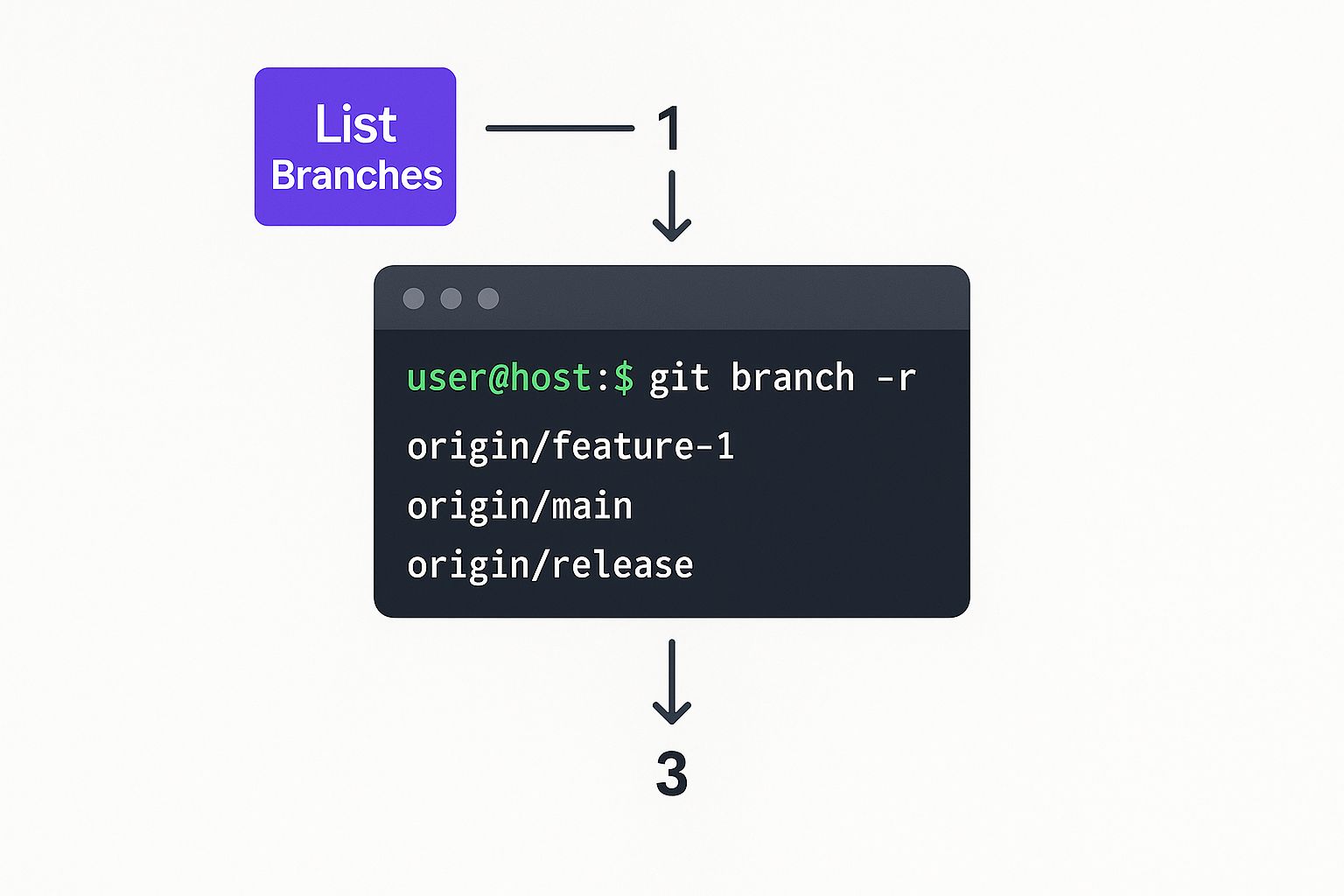
This flow shows that initial recon step—listing the remote branches—which is your essential starting point.
Updating an Existing Local Branch
Picture this: you're deep in your work on a branch called feature-xyz. Just then, a teammate pushes some critical updates to that same branch on the remote server (origin). Now, you need to get those changes onto your local machine to avoid conflicts and stay in sync.
First, double-check that you’re actually on the right local branch. It's a simple step, but one that can save you a world of hurt.
git checkout feature-xyz
With that confirmed, you can run the targeted pull command to grab just the updates for that specific branch.
git pull origin feature-xyz
Your terminal should light up with a confirmation message, something along these lines:
From github.com:user/repo
- branch feature-xyz -> FETCH_HEAD
Updating a1b2c3d..e4f5g6h
Fast-forward
src/component.js | 2 +-
1 file changed, 1 insertion(+), 1 deletion(-)
That output is your green light. It tells you Git successfully grabbed the new commits from origin/feature-xyz and merged them into your local feature-xyz branch. You're all synced up.
Pulling a Brand New Remote Branch
Okay, what about a different scenario? A colleague just created a brand-new branch on the remote called bugfix-auth and needs you to review their work. You can't just pull a branch that doesn't exist on your local machine yet. The approach here is a little different. It's a quick two-step dance with fetch and checkout.
First, you need to tell your local Git to update its map of the remote repository.
git fetch origin
This command is super useful. It downloads all the latest branch and commit info from the remote without messing with your current working files. Now that your local Git knows bugfix-auth exists, you can create a local copy and switch to it in one fluid motion.
git checkout bugfix-auth
Git is smart. It sees you're checking out a branch name that exists on the remote but not locally, so it creates a new local branch named bugfix-auth and sets it up to automatically track the remote origin/bugfix-auth.
Getting these workflows down is a game-changer. And if you're looking to really level up your process, it's worth exploring modern tools like AI coding assistants like GitHub Copilot. For those of you building in cloud-based IDEs, you might also find our guide on https://blog.dreamspace.xyz/post/replit-alternatives helpful.
Troubleshooting Common Pull Errors
Even the most carefully crafted git pull command can hit a snag. When you're trying to pull a specific branch, running into errors is just part of the game. The good news is that most of these issues have pretty straightforward fixes that will get you back to coding in no time.
One of the most common blockers is a conflict with uncommitted local changes. Git is smart enough to protect your work; it won't pull if there's a risk of overwriting anything you haven't saved.
The cleanest way to handle this is git stash. This command safely tucks away your modifications, giving you a clean slate to perform the pull. Once you're done, git stash pop brings them right back.
Resolving Merge Conflicts
Another classic problem is the merge conflict. This happens when your local commits and the remote commits have touched the same lines of code. Git will hit the pause button and ask you to step in and sort it out manually.
Just open the files flagged by Git, decide which changes to keep, and commit the resolved file. It's a normal part of collaborating with a team.
The
git pullcommand has been a lifesaver since Git's early days back in 2005. By 2010, with over 60% of developers using feature-branch workflows, pulling specific branches became absolutely essential for avoiding integration nightmares. You can get more of the backstory over on CloudBees.
Authentication errors can also pop up and block your pull. This usually just means your credentials—like a personal access token—are wrong or expired. Double-checking them with your Git provider is the fastest way to fix it.
For tougher bugs, you might find an AI-powered coding assistant helpful for diagnosing the root cause. Mastering these quick troubleshooting steps is key to keeping a smooth workflow, especially in a fast-paced environment like our vibe coding studio, Dreamspace.
Understanding Git Fetch vs. Pull
So, you've been using git pull to get the latest changes, right? It's simple, it's fast, and it usually works. But what's really happening behind the scenes is crucial for mastering your Git workflow.
https://www.youtube.com/embed/Sqsz1-o7nXk
Think of git pull as a convenient shortcut. It's not one command, but two mashed together: git fetch followed immediately by git merge. It reaches out to the remote, grabs all the new commits, and instantly tries to weave them into your current local branch.
While that sounds efficient, the automatic merge can sometimes throw you a curveball, leading to unexpected conflicts or a jumbled commit history if you're not paying close attention.
Why Fetching First Gives You More Control
For developers deep in complex projects, a more deliberate approach is often a lifesaver. This is where running git fetch on its own comes into play. It downloads all the new data from the remote repository but—and this is the important part—it doesn't touch your local working files.
This simple separation creates a powerful workflow. You get a chance to breathe and inspect the incoming changes before they're integrated. For instance, you can run a quick git log origin/main..main to see a clean list of new commits that exist on the remote but not on your local branch.
This habit of separating fetch from merge is what separates the pros from the beginners. It gives you the space to review changes, anticipate conflicts, and decide whether a
mergeor arebasemakes more sense for the situation. No more surprises.
Git Pull vs Git Fetch The Developer's Choice
When you're deciding how to sync your local branch with a remote, the choice between git pull and a separate git fetch matters. The former is about speed and convenience, while the latter is all about control and deliberation. Let's break down the key differences.
Ultimately, git pull is great for straightforward updates. But in a busy, collaborative environment like the one we have at Dreamspace, our AI app generator, where code is constantly evolving, fetching first gives you the visibility and control needed to maintain a clean, stable codebase. It’s a small change in habit that makes a huge difference.
A Few Common Questions

When you're getting the hang of pulling specific branches in Git, a few common "what if" scenarios tend to pop up. Let's walk through them.
What Happens if I Pull a Branch While I'm on a Different One?
This is a classic slip-up. Let's say you’re currently checked out on branch-A and you run git pull origin branch-B. Git will fetch all the latest updates from branch-B and then immediately try to merge them straight into your current branch, branch-A.
This can be a neat shortcut for integrating changes, but more often than not, it's an accident waiting to happen. To keep your commit history clean and avoid surprise merges, it’s always best to switch to the correct local branch before you pull.
How Do I Pull a Totally New Remote Branch?
You can't actually pull a branch that doesn't exist on your local machine yet. The process is a two-step.
First, you need to update your local copy of the remote's branches with git fetch origin. After that, you can create and switch to a new local branch that tracks the remote one you want. The command for that is git checkout -b <new-branch-name> origin/<new-branch-name>.
Is it Safer to Use git pull or git fetch?
For quick, simple updates on a branch you're working on by yourself, git pull gets the job done. However, in any kind of collaborative project, git fetch is almost always the safer bet.
Why? Because it downloads the remote changes without automatically merging them. This gives you a chance to look at what's coming in before it gets tangled up with your local code.
That pause to review changes is invaluable. It helps you catch potential conflicts or major architectural shifts early, giving you the control needed to keep the codebase stable. That's a practice we live by here at our vibe coding studio, Dreamspace.
If you want to take your workflow to the next level, you should check out the https://blog.dreamspace.xyz/post/best-ai-for-programming. These modern tools are getting incredibly good at helping developers manage complex projects and version control.
Ready to build and deploy onchain apps faster than ever? At Dreamspace, we've created an AI app generator that turns your ideas into production-ready code, complete with smart contracts and blockchain data queries. Stop coding from scratch and start creating. Generate your app with Dreamspace today.