
Git Commit vs Push A Developer's Guide
Here's the deal: git commit saves your changes on your own computer, and that's it. git push takes those saved changes and sends them to a shared server like GitHub, where your team can see them.
It's like writing a document. A commit is like hitting "Save." You do it often to create checkpoints for yourself. A push is like emailing that document to your colleagues. You only do that when it's ready for feedback or review.
Git Commit vs. Git Push: A Quick Comparison
Getting the hang of git commit versus git push is one of those "aha!" moments for every developer. The core difference is all about where the action happens.
A git commit is a purely local operation. You're taking a snapshot of your staged changes and adding it to your personal project history. No one else sees it, and you don't even need an internet connection. It’s your private workbench.
On the other hand, git push is all about collaboration. This command takes one or more of your local commits and uploads them to the remote repository. This is how you share your work and get it in sync with the rest of the team.
This two-step process is brilliant because it lets you build a clean, sensible history. You can make tons of tiny, iterative commits on your machine as you figure things out. Once your feature is solid, you can push a clean, logical group of commits for everyone else to see. This workflow is central to everything from solo projects built with an AI app generators like Dreamspace to massive enterprise-level codebases.
To really nail down the git commit vs. push distinction, let's break it down side-by-side.
Core Differences at a Glance
This table shows you the fundamental distinctions between committing and pushing your code in a standard Git workflow.
Simply put, you commit for yourself and push for the team. This separation is what makes Git such a powerful tool for collaborative development.
Mastering Git Commit for a Cleaner History
A git commit isn't just a save point. Think of it as a permanent entry in your project's logbook. Each one tells a small part of your project's story, creating a clear history that you and your team will depend on for debugging, reviewing, and just understanding how the code got to where it is today.
The real goal is to build a logical timeline of changes—not a messy, chaotic history of every single keystroke. This discipline is essential whether you're a solo dev or working with a fast-paced team at a vibe coding studio like Dreamspace.
The Art of the Atomic Commit
For a clean and useful history, the gold standard is the atomic commit. This just means that every commit should represent one single, complete logical change. Instead of one monster commit that adds a new feature, fixes a bug, and refactors some old code, you’d create three separate, focused commits.
Why bother? A few big reasons:
- Easier Debugging: When a bug pops up, you can use tools like
git bisectto zero in on the exact commit that broke things. It's a lifesaver. - Simplified Code Reviews: Your teammates can review small, focused changes much faster and more effectively than one giant, sprawling commit.
- Clearer History: Anyone can glance at the commit log and instantly understand the step-by-step evolution of a feature.
A well-crafted commit history is a form of documentation. It communicates the why behind a change, not just the what, making the project easier for everyone to maintain down the road.
Practical Commit Syntax and Messages
The most common way to commit is with an inline message using the -m flag. This handy command stages all tracked, modified files (-a) and immediately commits them with your message (-m).
git commit -am "feat: Add user authentication endpoint"
Writing a great commit message is a skill in itself. The best ones are concise but descriptive, usually starting with a short summary line (under 50 characters) and then a more detailed explanation if the change needs it.
For devs looking to streamline their workflow, learning how an AI-powered coding assistant can help generate clear and consistent code can make your commits even more effective. This structured approach turns your commit log from a simple list into a powerful, searchable project diary.
Using Git Push to Collaborate Effectively
If git commit is your private save point, then git push is the moment you share your work with the world. This is the command that makes team collaboration tick. It takes all those commits you've carefully crafted on your local machine and sends them up to a shared remote repository where your teammates can see them.
Basically, you’re moving your work from your personal notebook to the public whiteboard.
The command is pretty simple, usually following the git push <remote> <branch> format. In most cases, you’ll be typing:
git push origin main
Here, origin is just the standard name for your main remote server (like a repo on GitHub or GitLab), and main is the branch you're updating. Of course, if you're working on a feature, you'd push to your own branch instead.
Syncing Before Sharing
Sooner or later, you'll try to push and Git will reject it. This isn't an error—it's a safety net. It just means someone else on your team pushed their changes to the same branch while you were working. Git stops you from blindly overwriting their contributions.
The golden rule of collaboration is simple: always sync before you share. A
git pushrejection is just Git’s way of telling you to grab the latest updates from your team before adding your own.
The fix is straightforward. You first need to pull the new changes using git pull. This command fetches the remote updates and merges them into your local branch. Once you sort out any merge conflicts that might pop up, you're clear to git push your combined work. Teams thrive on this kind of seamless workflow, which is why many look for great Replit alternatives for collaborative coding to stay in sync.
Triggering Automated Workflows
Pushing your code is often much more than just a sync. In any modern development setup, a push is the starting pistol for Continuous Integration/Continuous Deployment (CI/CD) pipelines. Pushing to a specific branch can kick off a whole chain of events automatically:
- Run automated tests to make sure your changes didn't break anything.
- Build the application with your new code included.
- Deploy the updated version to a staging or even a production server.
This kind of automation, all fired off by a simple git push, directly connects your local code to the live product. It’s a core practice for any serious dev team, especially those working in a vibe coding studio like Dreamspace.
The Standard Git Workflow in Action
To really get the difference between git commit and git push, you have to see them in their natural habitat. They aren't rivals; they're sequential steps in the same collaborative dance. This workflow gives you a crucial safety net, letting you experiment, break things, and fix them on your machine before anyone else sees your work.
The whole process is designed to be methodical and safe. You start by adding and committing, which builds a private, detailed history of your progress. Pushing that history is the final, deliberate act of publishing your work for others to see and use. This separation is the bedrock of modern, distributed development.
A Step-by-Step Feature Scenario
Let's walk through a classic development cycle. Imagine your task is to build a new user login page from scratch.
- Make Changes: You get to work, creating new HTML and CSS files and tweaking a JavaScript file to handle the form logic.
- Stage Changes: Once you've finished a logical chunk of work—like getting the basic UI elements on the page—you stage the files. Running
git add login.html login.csstells Git you want to include these specific changes in your next snapshot. - Commit Locally: Now it’s time to save that snapshot with a clear message.
git commit -m "feat: Create initial UI for login page"saves this version to your local repository. Your work is officially saved, but it's still completely private to you. - Push to Remote: After a few more commits (maybe for adding form validation or connecting to an API), the feature is done. You’re finally ready to share it with your team by running
git push origin feature/user-login.
This flow diagram breaks down the three main stages that take your code from your local machine to the shared remote repository.
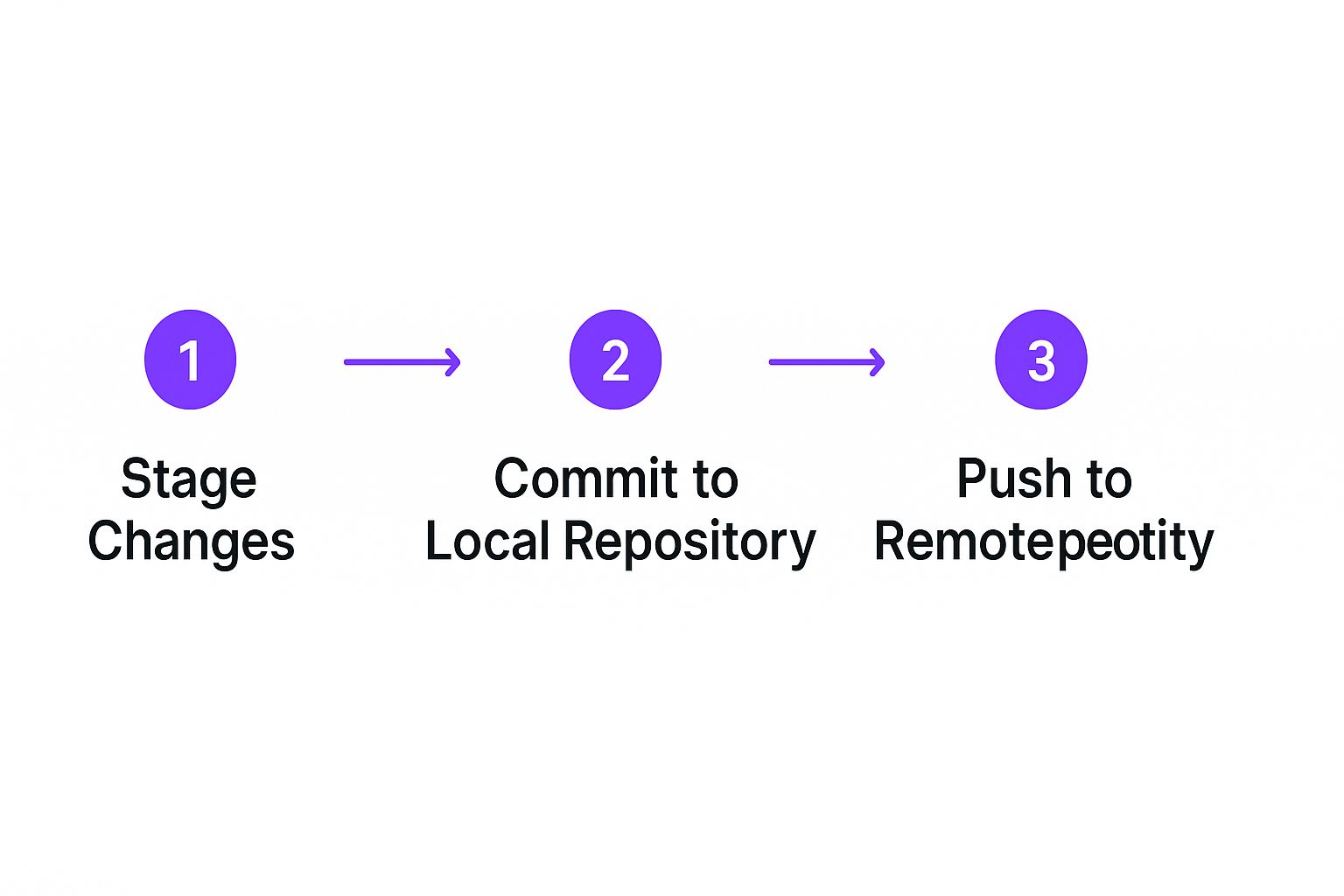
As you can see, committing is a purely local action. Pushing is what bridges your work to the collaborative, remote environment.
This local-first approach was a huge leap from older, centralized systems where every save could immediately affect the central server. Git's design empowers developers to build and polish a complete set of changes before making them public.
This separation of local and remote work took off with the rise of distributed version control systems in the mid-2000s. It’s a workflow that feels even more natural when paired with modern tools. For instance, an AI app generator can handle a lot of the boilerplate, letting you create focused, meaningful commits instead of getting bogged down in repetitive setup. You can learn more in our guide to the https://blog.dreamspace.xyz/post/best-ai-for-programming.
As you get comfortable with this flow, remember that a simple git push is often the trigger for something much bigger. Exploring CI/CD pipeline best practices shows you how that one command can kick off a whole chain of automated builds, tests, and deployments.
When to Commit and When to Push

Knowing the technical difference between git commit and git push is the first step. The real art is developing a professional rhythm for when to use each one. Think of them as two separate actions with completely different cadences.
You should be committing often—frequently and in small, logical chunks. Pushing, on the other hand, is a more deliberate act of sharing your work with the rest of the team.
Your Commit Cadence
Treat git commit like a super-powered save button. You should commit any time you complete a small, self-contained piece of work. This builds up a detailed local history that’s incredibly useful for tracking your own progress or rolling back a change that didn't pan out.
Your commit frequency should be high. A good habit is to commit every time you finish a micro-task that gets you one step closer to your goal.
- After fixing a bug: Verified the fix? Commit it immediately.
- When a new function is complete: Even if nothing else calls it yet, commit the completed function.
- After refactoring a file: Once the code is tidier and tests are passing, that's a perfect commit point.
Getting into the habit of frequent, atomic commits is one of the best things you can do for your productivity. It creates a clean, easy-to-follow project history and acts as your personal safety net.
Your Push Cadence
In contrast, when you git push should be much more strategic because it’s tied directly to team collaboration. Pushing sends your local work up to the shared repository for everyone to see and use, so the timing really matters.
Good times to push are at natural breakpoints in your day. Push your commits before heading out for lunch, at the end of the day, or anytime a feature is solid enough for a teammate to pull down and review.
A solo dev might only push once a day. But a developer on a fast-moving team, maybe at a vibe coding studio like Dreamspace, might push multiple times a day just to avoid the headache of massive merge conflicts.
This difference is clear in developer habits. Data shows that while devs commit frequently all day, they push far less often, usually bundling a solid chunk of work for the team to sync up on. You can dig into more developer workflow statistics at GeeksforGeeks.
Common Questions About Committing and Pushing
Getting the hang of git commit and git push always brings up a few questions. Knowing the answers is key to building good habits and avoiding messy situations, especially when you're working with a team.
Let's walk through some of the usual points of confusion.
Can I Undo a Git Push?
The short answer is yes, but you need to be incredibly careful. Trying to undo a git push on a shared branch is a risky move because you're rewriting history that your teammates might have already pulled down.
The safest way by far is to use git revert. This command creates a new commit that simply undoes the changes from a previous one. It keeps the project history clean and doesn't mess with anyone else's work.
You might be tempted to use git push --force, but that's a huge no-no in a team setting. It overwrites the remote history, which can wipe out your coworkers' commits and throw everyone's branches out of sync. It’s a recipe for chaos.
Think of it like this:
git revertis like adding a new entry in a logbook to correct an error. A force push is like ripping out a page. The first is transparent and safe for everyone; the second is just destructive.
What Happens If I Only Commit but Forget to Push?
If you only commit your changes, they're saved—but only on your local machine. That's it. Nobody else can see them, and they aren't backed up on the remote server like GitHub. Forgetting to push essentially means your work stays invisible to the rest of the team.
This also means that any CI/CD pipelines won't run. Your code won’t get tested, built, or deployed until you share it with the world by running git push.
Should I Push After Every Single Commit?
This is almost always a bad idea. You should definitely commit often to save your progress in small, logical chunks. But pushing every single one of them just floods the remote branch with tiny updates. It makes the project history incredibly noisy and a real pain for anyone trying to review your code.
A much better approach is to push after you’ve grouped a few local commits together into a complete, stable feature or fix. Push when you have something meaningful that’s ready for feedback. This keeps the remote history clean and tells a clear story.
Ready to build your next project without getting lost in boilerplate? With Dreamspace, you can generate production-ready onchain apps with AI. As a vibe coding studio and AI app generator, we let you focus on what matters most—creating. Generate smart contracts and more at dreamspace.xyz.