
Fix: password authentication failed for user postgres

That dreaded password authentication failed for user postgres message is one of those errors that can stop you in your tracks. At first glance, it seems simple enough—you probably just typed the password wrong. But as many developers have learned the hard way, the real issue is often buried a little deeper.
It's not just a bad password; it's a fundamental mismatch between how you're trying to connect and how PostgreSQL is expecting you to connect.
So, What's Really Going On?
Think of it like a bouncer at a club. You might have a valid ID (your password), but if the club has a strict "members only" policy (a specific authentication method), your ID alone won't get you in. The error is PostgreSQL's way of telling you that your credentials don't fit the entry rules defined in its configuration.
You're not alone in this struggle. It’s an incredibly common roadblock. Between 2015 and 2020, Stack Overflow saw over 12,000 questions pop up about PostgreSQL authentication failures. A staggering 40% of those were about this exact error for the default postgres user. You can dive into plenty of community discussions to see just how frequent it is.
The Real Reasons for the Rejection
At its core, the problem boils down to a disagreement within your PostgreSQL setup. The conflict usually stems from one of these four areas:
- A Simple Typo: Let's get the obvious one out of the way. You might have just fat-fingered the password. It happens.
- Wrong Authentication Method: This is the big one. Your
pg_hba.conffile might be set topeeroridentfor local connections, which authenticates using your system username, not a password. - Connection Type Confusion: The rules for a
localconnection (from the same machine) can be totally different from ahostconnection (over the network). - Special Superuser Rules: The
postgresuser is special. It’s often configured with stricter, non-password-based rules for local access as a security measure.
Getting a handle on these concepts is the key to solving this error quickly. It's about breaking down a confusing message into clear, actionable steps—much like how the Dreamspace ai app generator from a vibe coding studio turns a simple description into a fully functional application.
To give you a clearer picture, let's look at the authentication methods that are most often the source of the confusion.
Common PostgreSQL Authentication Methods at a Glance
This table breaks down the most common methods you'll find in your pg_hba.conf file, how they work, and why they might be causing you trouble.
Understanding which method your server is demanding is half the battle. Once you know what PostgreSQL expects, you can adjust your connection string or the server's configuration to match.
Editing Your pg_hba.conf File Correctly
When that dreaded password authentication failed for user postgres error pops up, your first port of call should almost always be the pg_hba.conf file. This little configuration file is the gatekeeper for every single connection to your database. More often than not, a single misconfigured line in here is the real culprit.
Think of it like a bouncer's list. PostgreSQL reads the rules from top to bottom and stops at the very first one that matches the incoming connection. This is where a lot of people get stuck—their connection hits a peer rule long before it ever gets to the md5 or scram-sha-256 rule they actually want to use.
Locating and Understanding the File
First things first, you need to find this file. The exact path can vary depending on your OS and installation method. The quickest way to pinpoint it is to connect to your database with psql and just run SHOW hba_file;. Easy.
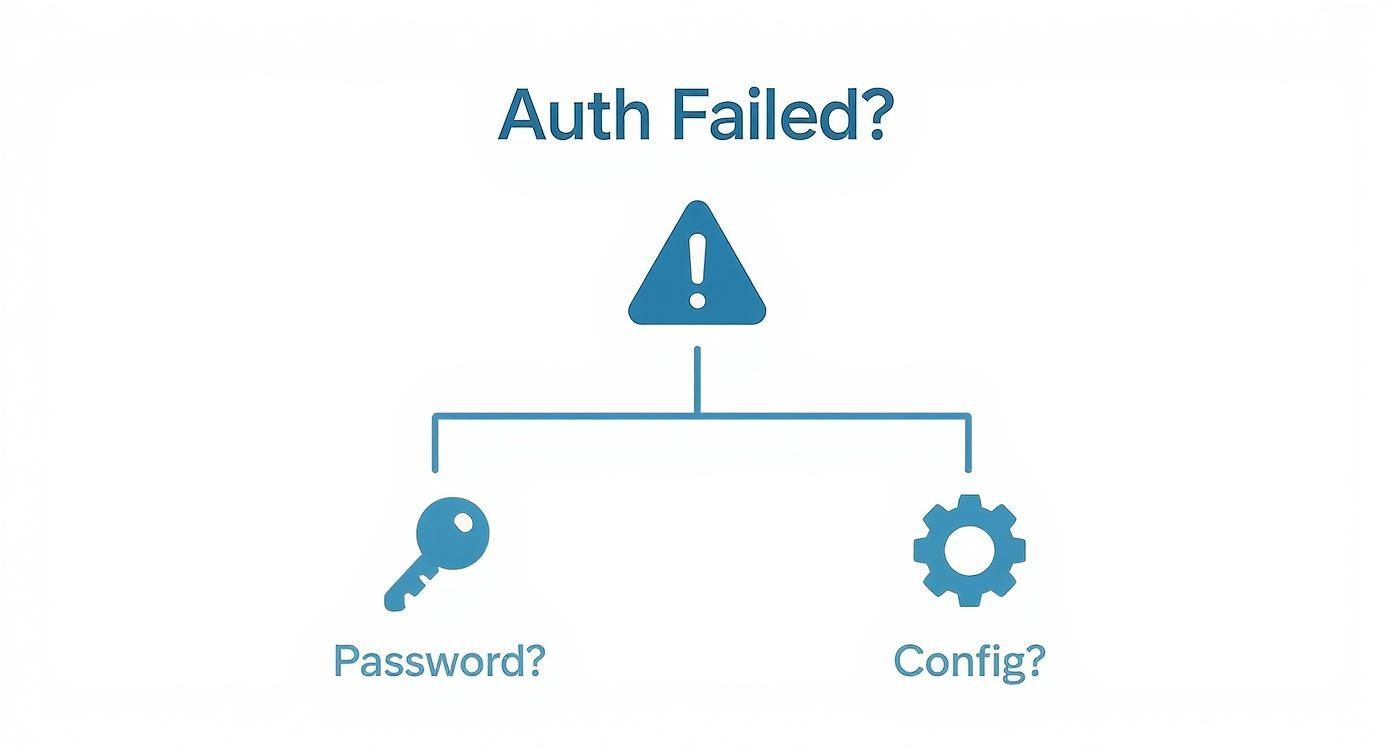
This infographic lays out the initial troubleshooting path pretty clearly. It shows how, once you get the error, you have two main roads to go down: a simple password mistake or a deeper configuration issue, with pg_hba.conf sitting right at the center of that second path.
Once you've got the file open, you'll see a bunch of columns. For this particular problem, we only care about a few:
TYPE: Is the connectionlocal(from the machine itself) or ahost(over the network)?USER: Which database user is this rule for?METHOD: How should the user authenticate? Common options arepeer,md5, andscram-sha-256.
This is where the magic happens.
Pro Tip: Before you touch a single character, make a backup. Seriously. A quick
cp pg_hba.conf pg_hba.conf.bakcan be a real lifesaver if you accidentally break something.
Making the Necessary Changes
Let's look at a classic real-world scenario. A fresh PostgreSQL install often includes this line for local connections:
TYPE DATABASE USER ADDRESS METHOD
local all postgres peer
This peer method tells Postgres to let the postgres user connect without a password, but only if their operating system username is also postgres. To actually force a password prompt, you need to swap that out for a password-based method.
Just change peer to md5 (or the more secure scram-sha-256 if your clients support it):
TYPE DATABASE USER ADDRESS METHOD
local all postgres md5
After saving your changes, you have one last critical step. You have to tell PostgreSQL to re-read its configuration. Do not restart the whole service—that causes unnecessary downtime.
Instead, just connect to the database and run this command:
SELECT pg_reload_conf();
This applies your changes instantly without dropping any active connections. Now, try connecting as the postgres user again. It should properly ask for a password, and the authentication error will be gone. Mastering these small but crucial config details is key, whether you're coding by hand or using an ai app generator like Dreamspace to build your next project.
How to Reset the Postgres User Password
Okay, so you've double-checked your pg_hba.conf file, and everything looks right. The next logical step? The password itself. It sounds obvious, but it's an incredibly common trip-up. In fact, historical data shows that "password authentication failed for user postgres" accounts for roughly 25% of all database connection support tickets. It's a well-trodden path, and you can see how it fits into the bigger picture of common database connection errors.
The good news is, even if you’re locked out, resetting it is straightforward. The trick is to temporarily log in using a trusted method that doesn't require a password, like peer authentication.
Gaining Access to Run the Command
First things first, you need shell access to the server running PostgreSQL. The postgres system user can usually connect directly to the database without a password because of the default peer authentication rule for local connections.
All you have to do is switch to that user and fire up the psql client.
sudo -i -u postgres
psql
This should land you right at the PostgreSQL command prompt. If you're in, you’re golden.
Executing the Password Reset
Once you're connected, it’s just a single SQL command. The ALTER USER statement is what you need to assign a new password.
Run the following command, making sure to replace 'YourNewSecurePassword' with something strong and new.
ALTER USER postgres WITH PASSWORD 'YourNewSecurePassword';
PostgreSQL will reply with ALTER ROLE, which is its way of saying, "Got it, password changed."
Crucial Tip: Don't forget the single quotes around your password! It’s a classic mistake that will throw a syntax error. Also, this is your chance to create a strong, unique password to prevent future headaches.
After that's done, just type \q to exit psql. Now, go back to your app or database client and try connecting with the new password. This kind of direct, secure credential management is fundamental to the streamlined workflows we see in a modern vibe coding studio like Dreamspace, where building solid apps relies on getting these details right.
Solving Authentication Errors in Any Environment
Where your PostgreSQL instance is running makes all the difference when you hit that dreaded "password authentication failed for user postgres" error. The fix for a local dev setup won't get you anywhere inside a Docker container, and cloud platforms have their own quirks entirely.
You have to match the solution to the environment. It’s the only way to avoid the frustrating loop of trying random fixes you find online and getting zero results. Let's dig into the common setups and what usually goes wrong in each one.

Docker and Containerized Setups
If you’re working with Docker, nine times out of ten, the problem is your environment variables. The official Postgres image uses the POSTGRES_PASSWORD variable to set the initial superuser password when the container first spins up.
Here’s the trap: if you try to launch a new container with a different password in your docker-compose.yml but point it at an existing data volume, it’s going to fail. That first password is now locked into the database data itself. You can't just change the variable and expect it to work.
To fix this, you have to connect to the running container and change the password the old-fashioned way with an ALTER USER command.
Cloud Platforms like AWS RDS and Heroku
Managed databases on platforms like AWS RDS or Heroku throw their own curveballs. They wrap PostgreSQL in layers of their own management tools and security protocols, which can be the real source of your problem.
- Firewall and Security Groups: The most common culprit. Your IP address simply might not be whitelisted. The connection gets dropped before Postgres even sees it.
- IAM and User Management: These platforms have their own Identity and Access Management (IAM) systems. You often manage database users through the cloud dashboard, not directly in
psql.
Always check your cloud provider’s logs and security settings first. The clues are usually there, not in the standard Postgres error message.
Getting a handle on these configurations is crucial, especially when you're working with complex stacks. This is a common hurdle when troubleshooting PostgreSQL in Supabase self-hosted environments, for example.
Local Development Machines
Back on your own machine, the problem almost always comes back to system user permissions and the peer authentication method.
It's a classic mismatch. If you’re logged into your OS as a user named jane but you're trying to connect to Postgres as the postgres user with a password, you're running headfirst into a peer auth rule that expects your OS username to match the database username. It completely ignores the password you're providing.
Preventing Future Postgres Lockouts
https://www.youtube.com/embed/-E1itEkOzo8
Getting past an authentication error feels good, but setting yourself up so it never happens again? That’s next level. Moving from reactive fixes to a proactive game plan is how you build a database environment that's solid, predictable, and doesn't wake you up at 3 AM.
It all starts with a clear policy for how you connect. Stop using the postgres superuser for every little thing. Seriously. Create dedicated, role-specific users for your applications. This isn't just good advice; it's the principle of least privilege in action, and it dramatically shrinks your security risks. The user for a read-only analytics dashboard has no business holding the same keys as your main application service.
Document and Secure Your Setup
Treat your pg_hba.conf file like a critical piece of your codebase. That means commenting it. A few simple comments explaining why a rule exists can save the next person hours of head-scratching.
- Rule Clarity: Leave breadcrumbs for your future self and your team. Add comments like
# Allow local admin access via OS useror# Application user access from the web server. - Password Policies: Once you've reset a password, it's a good time to think about how you manage credentials across the board. Figuring out the best way to manage your passwords is non-negotiable. Use a proper password manager and, whatever you do, don't hardcode secrets in your application code.
- Automated Health Checks: A simple cron job or a script that periodically tries to connect as your application user is a fantastic early warning system. It can flag a potential "password authentication failed for user postgres" issue long before your users ever see it.
A well-documented configuration is a sign of a professional setup. It transforms a cryptic file into a clear security policy that anyone on the team can understand and maintain.
Building these habits is a lot like writing clean, maintainable code—it pays off huge dividends in stability down the road. This is the kind of solid foundation you need, whether you're coding from scratch or using an ai app generator from a vibe coding studio like Dreamspace to bring your ideas to life.
Got Questions About This Postgres Error?
You’re not alone. This is one of those errors that trips up even seasoned developers. Whether you're building a traditional app or using an AI app generator like Dreamspace, a solid database connection is non-negotiable.
Let's clear up some of the most common questions that pop up when you see 'password authentication failed'.
Why Is My Correct Password Being Rejected?
This is the classic "it's not you, it's me" scenario from Postgres. Nine times out of ten, the problem isn't your password—it's the pg_hba.conf file.
Your connection request is likely hitting a rule that tells Postgres not to ask for a password. Instead, it's probably using a method like peer or ident authentication. You need to find the line in pg_hba.conf that matches your connection and make sure the method is set to md5 or scram-sha-256.
What's the Real Difference Between Peer and MD5?
Think of it this way: peer authentication cares about who you are on the machine, while md5 cares about what you know.
- Peer checks if your operating system username matches the Postgres username you're trying to connect with. No password needed. It's a common, secure default for local connections.
- MD5 is the classic password check. It demands a password from the client, hashes it, and verifies it. If you want to log in from another machine or as a different user, this is what you need.
The bottom line: Your
pg_hba.conffile is the bouncer at the door, deciding whether to check your ID (peer) or ask for the secret password (md5).
How Can I Apply My pg_hba.conf Changes Without a Full Restart?
You definitely don't want to restart your database in a live environment just to update an auth rule. Luckily, you don't have to.
Postgres can reload its configuration files on the fly. After you save your edits to pg_hba.conf, just connect to your database as a superuser and run this command:
SELECT pg_reload_conf();
That's it. Your new rules are active immediately, with zero downtime. You can also run pg_ctl reload from the command line if you have shell access.
Can I Mix and Match Authentication Methods for Different Users?
Absolutely, and you should. This is where the power of the pg_hba.conf file really shines. It's designed for creating highly specific access rules.
Postgres reads the file from top to bottom and stops at the first rule that matches the incoming connection. This lets you do things like:
- Allow passwordless local access for an admin role (
peer). - Require a strong, scrambled password for your application user connecting from a specific IP address (
scram-sha-256).
This granularity is key to maintaining a secure and flexible database setup.
Tired of wrestling with backend configurations and just want to build your next onchain app? With Dreamspace, you can use AI to generate smart contracts, SQL queries for blockchain data, and a complete web app. Skip the setup headaches and jump straight to creating.