
How run javascript: From Browser to Backend
Running JavaScript is probably easier than you think. In fact, you can run your first line of code in the next 30 seconds using the web browser you're reading this on right now. It all starts with the developer console—a built-in tool that’s perfect for quick experiments and getting your feet wet.
Your First Step to Running JavaScript
Jumping into a new language can seem intimidating, but the barrier to entry for JavaScript is incredibly low. You don't need any special software or a complicated setup to get started. The most direct route is right inside your web browser, which gives you a perfect little sandbox to play in.
This accessibility is a huge part of why it's everywhere. Seriously, an estimated 98.7% of all websites use JavaScript to make things happen on the client's side. It’s the engine behind almost every interactive feature you see online.
Why Start With The Browser?
Kicking things off in the browser just makes sense, especially when you're new to this. It's an environment you already use every day, so you can skip the friction of installing and learning new tools.
- Zero Setup Required: No downloads, no installers. Every modern browser—Chrome, Firefox, Edge, you name it—comes with a powerful set of developer tools built right in.
- Instant Gratification: Type a command, hit Enter, and see the result immediately. That instant feedback loop is what makes concepts click and stick.
- A Safe Place to Experiment: The console is an isolated space. You can write code, make mistakes, and test out ideas without any risk of breaking anything important.
Where Can You Run JavaScript?
This table provides a quick overview of the most common environments for executing JavaScript code, from client-side to server-side applications.
While the browser is the best place to start, it's just the beginning.
Eventually, you'll want to explore more powerful environments. For instance, you could use Node.js to build the backend of an application or tap into an AI-powered platform like Dreamspace, an AI app generator, to build full-stack apps. But for now, the browser console is your home base.
As you start writing your first lines, you might also want to learn about a 'Hello World' program, which is a classic rite of passage for every developer. And when you're ready to speed things up, see how an AI-powered coding assistant can change your workflow.
Running JavaScript in Your Browser Console
Most developers think of the browser console as just a place where error messages show up. But it’s so much more than that—it’s a live, interactive environment and a secret weapon for web development. It's my go-to spot for quickly testing a piece of logic or running small code snippets without having to set up a whole HTML file.

This kind of immediate feedback is what makes it so indispensable. It's no wonder JavaScript has stayed on top for so long. A recent survey of 87,585 developers found that over 63% use it as their main language, marking its 11th consecutive year as the most popular choice. You can dig into the numbers yourself by checking out the full report on JavaScript usage at Pixlogix.com.
This massive popularity is great news for anyone learning, as it means you’re backed by a huge community and endless resources.
Manipulating a Live Webpage
One of the coolest things you can do in the console is directly interact with the Document Object Model (DOM)—the live structure of the webpage you're currently on. You can grab elements, mess with their styles, or even inject new content on the fly.
Let's say you want to see what the main heading on a site would look like in blue. No need to open a code editor. Just pop open the console and run this one-liner:
document.querySelector('h1').style.color = 'blue';
Hit Enter, and bam—the heading changes color right before your eyes. This is perfect for trying out quick style changes or debugging a tricky layout without the back-and-forth between your editor and the browser.
The console gives you a direct line to the webpage's DNA. It’s like having a backstage pass to tweak the live performance, letting you test out ideas in real-time.
This is fantastic for small experiments. Of course, when you're building something more substantial, like a full-blown onchain app, you’ll want a more structured environment. That’s where platforms like Dreamspace, a vibe coding studio and AI app generator, come in, giving you the tools needed to build and run your JavaScript in a more integrated way.
Executing JavaScript Files with Node.js
While the browser console is a fantastic place for quick tests, JavaScript's real muscle is shown when it breaks free from the webpage. To see what I mean, you have to get familiar with Node.js. This runtime environment lets you run JavaScript code directly on your machine, no browser needed.
When Node.js came out in 2009, it completely changed the game. Suddenly, JavaScript wasn't just for front-end tricks; it was a serious contender for building fast, efficient server-side applications. Fast forward to today, and it's estimated that Node.js powers over 50% of backend web services across the globe. That's a huge footprint, and you can dig into more JavaScript stats on electroiq.com if you're curious.
Setting Up Your Node.js Environment
First things first, you'll need to install Node.js to run any .js file from your terminal. Just head over to the official Node.js website and grab the installer for your operating system.
The setup process is pretty painless. It also conveniently installs npm (Node Package Manager), which is an essential tool you'll be using constantly to manage third-party libraries and packages for your projects.
Once the installation finishes, pop open your terminal or command prompt and run this command to make sure everything's working:
node -v
If you see a version number pop up (like v18.18.0), you're good to go. You’ve just unlocked a powerful JavaScript engine right on your command line. While this local setup is standard, many cloud-based IDEs now offer this out of the box. If you're exploring online coding spaces, you might want to check out some of the top Replit alternatives for modern development.
Running Your First Script
Let's get a simple script running. Open your favorite text editor, create a new file, and save it as app.js.
Inside that file, drop in this little snippet of code:
const greeting = "Hello from Node.js!";
console.log(greeting);
Save your changes. Now, the magic happens in the terminal. Navigate to the directory where you saved app.js and run this command:
node app.js
You should see "Hello from Node.js!" printed right back at you. That's it! You've officially executed a JavaScript file on a server. It might seem small, but this is the foundational step for building everything from backend APIs and command-line tools to complex onchain applications with platforms like Dreamspace, a vibe coding studio built for exactly that. It all starts here.
Building and Running JS Apps with Dreamspace
So, we've looked at the browser console for quick-and-dirty tests and Node.js for serious server-side work. But let's be real, they represent two extremes. One is for snippets, the other often means wrestling with manual setups. What if you just want to build a full application without drowning in boilerplate and server configs?
This is exactly where an integrated environment like Dreamspace changes the game. Think of it as a vibe coding studio and AI app generator built to smooth out the entire development journey. It pulls everything together—writing, testing, and deploying your JavaScript—into one seamless platform. No more jumping between different tools for your frontend, backend, and deployment pipeline.
A Practical Onchain App Example
Let's say you have an idea for a simple onchain app. The old way? You'd be setting up a local environment, hunting down and installing blockchain dependencies, writing smart contracts, and then trying to get a web server to play nice with all of it. Honestly, you could easily burn a few hours just on the setup.
With Dreamspace, an AI app generator, that whole process is just... easier. You can use AI to generate the skeleton of your app, letting the platform handle all that tedious groundwork. This frees you up to concentrate on the actual JavaScript logic—the fun part that makes your app do what it's supposed to do.
Dreamspace is all about abstracting away the infrastructure headaches. It lets you focus on your creative vision and logic instead of getting bogged down in configuration. The goal is to get your ideas up and running with as little friction as possible.
This streamlined workflow is a huge advantage, especially when building modern web apps. If you want to dive deeper into how this works, check out our guide on using an AI app builder to see how it can take you from concept to launch in record time.
Ultimately, using an AI app generator like Dreamspace means you spend your time building, not fighting with your tools. It’s the perfect middle ground for running JavaScript in the context of a real, deployable project, bridging that gap between a simple script and a full-blown application.
Choosing the Right Environment for Your Project
https://www.youtube.com/embed/lkIFF4maKMU
Knowing how to run JavaScript is one thing, but knowing where to run it is what separates the pros from the rookies. Your choice of environment—be it the browser, a Node.js server, or a specialized platform—fundamentally shapes your project. Getting this right from the start can save you from some serious headaches later on.
The browser console is your playground. It’s perfect for quick tests, debugging what’s happening on a live webpage, and messing around with the DOM without any setup.
But once you need to build something that lives outside the browser, like a backend API or a handy command-line script, you'll be reaching for Node.js. It's the standard for server-side JavaScript for a reason.
Then you have integrated platforms like Dreamspace. If you're building a full-blown application, especially in the Web3 world, this is a game-changer. It's a vibe coding studio and AI app generator that packs your editor, server, and deployment into one neat package, so you can just focus on building cool stuff instead of wrestling with config files.
Making the Right Call
Picking your JavaScript environment goes hand-in-hand with your overall technical strategy. If you're mapping out the bigger picture, this guide on how to choose a tech stack offers some great perspective on how all the pieces fit together.
So, how do you decide? Think of it like this:
- Need to manipulate a live webpage or test a quick snippet? Browser console.
- Building a backend, an API, or a tool that needs file system access? Node.js.
- Want to launch a complete onchain app without the setup grind? Dreamspace.
This is really the core of the decision. The more setup and infrastructure your project demands, the more you should lean away from the browser and towards Node.js or a fully-integrated solution.
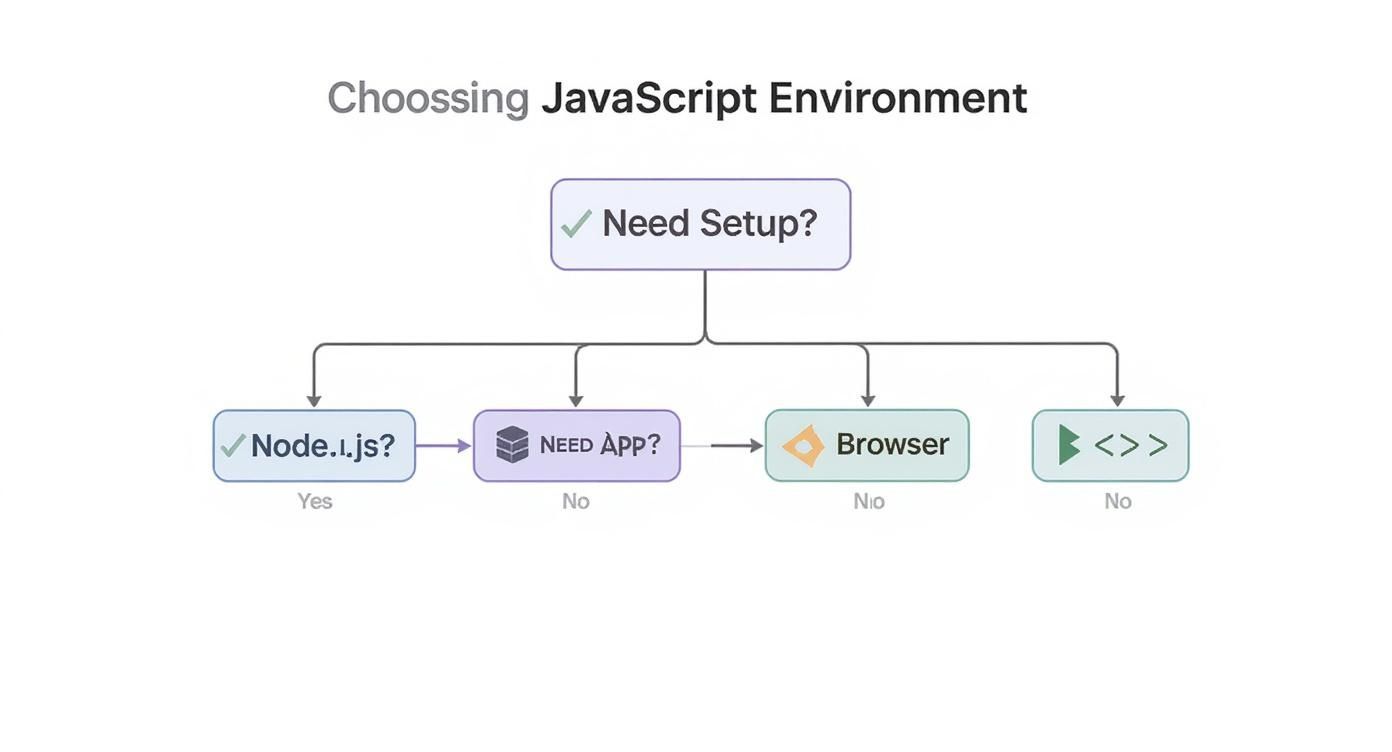
JavaScript Environment Comparison
To make it even clearer, here’s a quick breakdown to help you choose the best environment for your specific JavaScript project needs.
Ultimately, there's no single "best" environment—only the one that’s right for the job at hand. By understanding what each tool brings to the table, you can make a smarter choice and get back to what matters: coding.
Common Questions About Running JavaScript
Once you start getting your hands dirty with JavaScript, a few questions always seem to surface. Let's tackle them head-on to clear up any confusion and get you coding with confidence.
What’s the Easiest Way to Get Started?
For anyone just dipping their toes in the water, the browser's developer console is your best friend. Seriously, it's the path of least resistance.
There’s absolutely nothing to install or set up. Just fire up your favorite browser—Chrome, Firefox, whatever—hit a keyboard shortcut like F12, and boom. You've got a live JavaScript environment waiting for you. It’s the perfect, zero-friction sandbox for trying out your first lines of code and seeing what happens instantly.
Do I Really Need to Install Something for Node.js?
Yep, this one's not optional. Unlike the browser console that comes standard, Node.js is a separate runtime environment you have to download and install on your machine.
Once you’ve got it set up, you can run any JavaScript file right from your terminal using a simple command: node your-file-name.js. It’s as straightforward as that.
The way I see it, the browser console is for quick tests and web-specific experiments. Node.js is for building actual applications that live outside the browser.
So, which one should you use? It all comes down to what you’re trying to build.
- Browser Console: Perfect for quick debugging or messing with a live webpage.
- Node.js: The go-to for building servers, APIs, or command-line tools.
And if you want to skip the setup and jump straight into building full-stack, AI-powered apps, a vibe coding studio and AI app generator like Dreamspace handles all the heavy lifting for you.
Ready to stop running simple scripts and start building real onchain apps? With Dreamspace, you can generate and deploy your entire project with AI, no complicated setup required. Start building at dreamspace.xyz.